I use sp_WhoIsActive on pretty much every SQL Server I work with. Installing it by hand works fine. The project’s README says to download sp_WhoIsActive.sql, open it in SSMS and run it. Now that dbatools can do that for me, the manual route feels like an extra step. If you don’t have dbatools installed yet, I keep a short reference here: Installing dbatools.
With dbatools available, the install is two lines:
$instance = Connect-DbaInstance -SqlInstance "localhost\MSSQLSERVER" -TrustServerCertificate
Install-DbaWhoIsActive -SqlInstance $instance -Database master -Verbose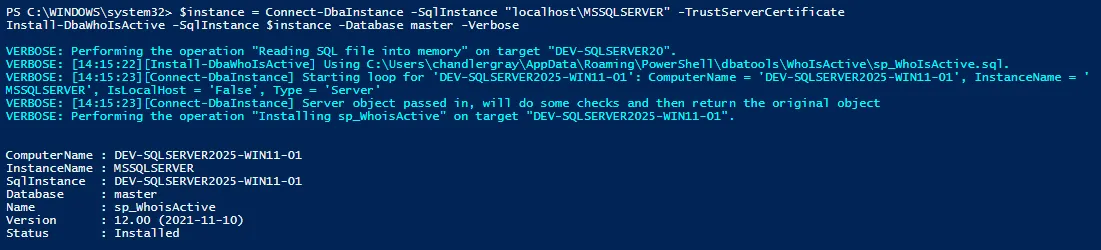
Install-DbaWhoIsActive downloads the latest release from GitHub each time it runs, unless you point it at a local copy of the file. The command’s documentation covers both options.
The same page explains why -Database master is written out. In an interactive session the command defaults to master on its own, but in a script it would stop and prompt for a database, so the parameter is required there. Master is also the right place for it. Installed there, the procedure can be run from every database on the instance, and installed in a user database it only works in that one. The sp_WhoIsActive README gives the same advice.
When I need it on several servers, I loop through the list:
$servers = @(
  "prod1\SQL"
  ,"prod2\SQL"
  ,"dev\SQL"
)

foreach ($s in $servers) {
  $i = Connect-DbaInstance -SqlInstance $s -TrustServerCertificate
  Install-DbaWhoIsActive -SqlInstance $i -Database master -Verbose
}
It saves a few minutes and keeps the install the same across the environments I touch.
The loop has no error handling. For three servers the output is easy enough to watch as it runs. For a longer list, I’d wrap the body of the loop in a try/catch and collect the servers that failed, so the list of what still needs attention is waiting at the end.