I ran DBCC SHRINKFILE with EMPTYFILE against a 400GB database in FULL recovery and watched the transaction log go from about 20GB to nearly 200GB before I killed it. The operation is fully logged, one page at a time, and in FULL recovery every one of those page moves is sitting in the log waiting on a log backup. That’s the thing I’d want to know before starting, so it’s going first.
The database that got me here had one .mdf and seven .ndf files. That’s not unusual in older systems and it’s usually not necessary now. The workload wasn’t pushing any storage limits and the disk was modern enough to handle a single data file, so the plan was to restore it as-is and then consolidate.
Multiple data files used to spread I/O across spinning disks, which was a real benefit at the time. On SSDs and SANs that advantage is typically small or gone, and managing the extra files costs more than it returns.
The screenshots below come from a small test database with the same kind of layout, one .mdf and three .ndf files, and I’ve included the script that builds it so you can follow along without touching anything real.
Why This Database Had Eight Files
SQL Server stores data inside filegroups, which are made up of logical files that point to the actual .mdf or .ndf files on disk. When you restore a backup, SQL Server expects every file in that backup to exist. There’s no way to merge files during the restore itself. You have to bring the database online first, then consolidate afterward.
I prefer to collapse files when they’re just leftover structure from an older environment:
- You’re no longer on spinning rust.
- There’s no real multi-volume layout behind them anymore.
- The extra files make backups, monitoring, and restores more complicated than they need to be.
Multiple data files still make sense in some scenarios (TempDB, multiple storage tiers, massive OLTP), but in a lot of line-of-business systems they’re just historical clutter.
Demo Setup: Build a Playground With Multiple Data Files
Here’s a self-contained lab script you can run on a dev instance. It creates a database with one MDF and three NDFs, loads some data, and gives you something to merge.
USE master;
GO

IF DB_ID('DemoMergeFiles') IS NOT NULL
BEGIN
    ALTER DATABASE DemoMergeFiles SET SINGLE_USER WITH ROLLBACK IMMEDIATE;
    DROP DATABASE DemoMergeFiles;
END
GO

CREATE DATABASE DemoMergeFiles
ON PRIMARY
(
    NAME = N'DemoMergeFiles_Primary',
    FILENAME = N'F:\SQLData\DemoMergeFiles_Primary.mdf',
    SIZE = 200MB,
    FILEGROWTH = 50MB
),
(
    NAME = N'DemoMergeFiles_NDF1',
    FILENAME = N'F:\SQLData\DemoMergeFiles_NDF1.ndf',
    SIZE = 200MB,
    FILEGROWTH = 50MB
),
(
    NAME = N'DemoMergeFiles_NDF2',
    FILENAME = N'F:\SQLData\DemoMergeFiles_NDF2.ndf',
    SIZE = 200MB,
    FILEGROWTH = 50MB
),
(
    NAME = N'DemoMergeFiles_NDF3',
    FILENAME = N'F:\SQLData\DemoMergeFiles_NDF3.ndf',
    SIZE = 200MB,
    FILEGROWTH = 50MB
)
LOG ON
(
    NAME = N'DemoMergeFiles_Log',
    FILENAME = N'F:\SQLData\DemoMergeFiles_Log.ldf',
    SIZE = 200MB,
    FILEGROWTH = 50MB
);
GO

ALTER DATABASE DemoMergeFiles SET RECOVERY SIMPLE;
GO
Adjust paths to match wherever your instance keeps data and log files.
Load Some Data So The Files Actually Get Used
The table is wide on purpose, so its pages spread across every file in the filegroup.
USE DemoMergeFiles;
GO

IF OBJECT_ID('dbo.BigDemo', 'U') IS NOT NULL
    DROP TABLE dbo.BigDemo;
GO

CREATE TABLE dbo.BigDemo
(
    Id INT IDENTITY(1,1) PRIMARY KEY CLUSTERED,
    SomeText CHAR(4000) NOT NULL,
    SomeNumber INT NOT NULL,
    CreatedAt DATETIME2 NOT NULL
);
GO

-- Adjust this to make EMPTYFILE take longer or shorter.
DECLARE @TargetRows INT = 500000;

WITH Numbers AS
(
    SELECT TOP (@TargetRows)
           ROW_NUMBER() OVER (ORDER BY (SELECT NULL)) AS n
    FROM sys.all_objects AS a
    CROSS JOIN sys.all_objects AS b
)
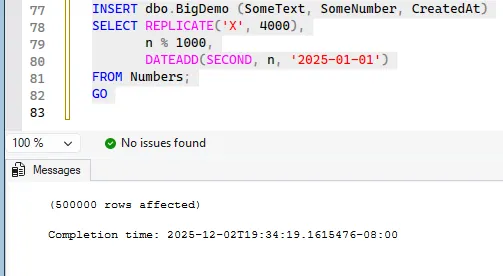
INSERT dbo.BigDemo (SomeText, SomeNumber, CreatedAt)
SELECT REPLICATE('X', 4000),
       n % 1000,
       DATEADD(SECOND, n, '2025-01-01')
FROM Numbers;
GO
On my test system, half a million rows was enough to put data in every file without taking long to load.
Determine File Usage Patterns
After the restore, or the demo setup above, the first thing I look at is the file layout and how much space each file is actually using.
USE DemoMergeFiles;
GO

SELECT  name,
        type_desc,
        physical_name,
        size * 8 / 1024 AS SizeMB,
        FILEPROPERTY(name, 'SpaceUsed') * 8 / 1024 AS UsedMB
FROM sys.database_files;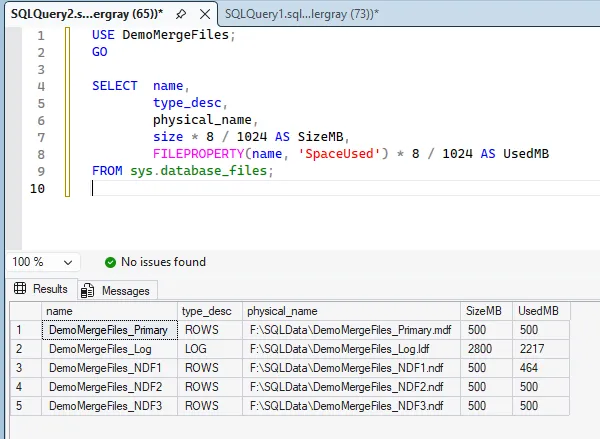
Pre-Migration Safety Preparations
In production I do a few things before touching the file structure:
- Make sure there’s a recent backup and that it actually restores.
- Switch to SIMPLE recovery if the database can go without log backups for a while. Microsoft’s recovery model page says to back up the log before switching away from FULL, and after switching back to take “a full or differential database backup to start the log chain,” so I plan for both of those backups as part of the job.
- Pick a time without long-running queries or index rebuilds. Moving an IAM page needs a schema modification (
Sch-M) lock, and theDBCC SHRINKFILEdocumentation says “long-running queries can block a shrink operation,” and that “any new query requiring aSch-Slock on an IAM page can queue behind the shrink operation.” On SQL Server 2022 and later there’sWITH WAIT_AT_LOW_PRIORITY, which keeps the shrink from holding those queries up. The syntax allows it alongsideEMPTYFILE, though the documentation’s examples only show it with a regular shrink.
In this demo we already set the database to SIMPLE. If you’re starting from a restore in FULL, this is roughly what I’d do:
ALTER DATABASE DemoMergeFiles SET RECOVERY SIMPLE;
GO
Switching to SIMPLE doesn’t make EMPTYFILE any lighter. Shrink isn’t on Microsoft’s list of operations that can be minimally logged, so every page move is fully logged whatever the recovery model. What SIMPLE changes is when that log space can be reused. The log truncates “under the simple recovery model, after a checkpoint” instead of waiting on a log backup, which is the difference between my 20GB-to-200GB log in FULL and a log that can clear itself as it goes. The shrink documentation calls it “a long-running and resource-intensive operation,” so in production I tell stakeholders that before I start. The database stays online, but EMPTYFILE takes a significant amount of time.
Move Pages With EMPTYFILE
To collapse files within a filegroup, you move all the pages out of the files you’re removing and into the ones you’re keeping.
The core commands for a single file look like this:
USE DemoMergeFiles;
GO

DBCC SHRINKFILE (N'DemoMergeFiles_NDF3', EMPTYFILE);
GO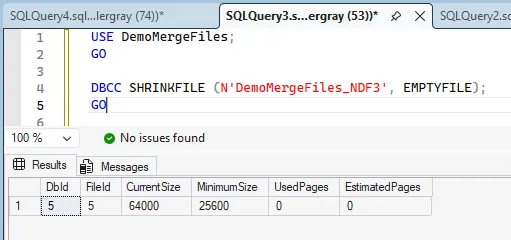
Once the file is empty, removing it is one more command:
ALTER DATABASE DemoMergeFiles
REMOVE FILE DemoMergeFiles_NDF3;
GO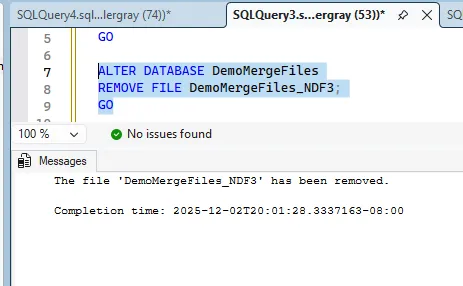
Behind the scenes, EMPTYFILE walks the file page-by-page, moving allocations into other files in the same filegroup. The documentation says it “migrates all data from the specified file to other files in the same filegroup,” and that filegroup restriction is why this collapses files inside a filegroup and can’t be used to move data between them. It’s fully logged, and it’s single-threaded, which the shrink documentation doesn’t mention either way.
The same page has a detail that matters if you stop one partway, like I did with the 400GB database: “If you use the EMPTYFILE parameter and cancel the operation, the file isn’t marked to prevent additional data from being added.” That marking is what keeps new data out of a file while it’s being emptied. The pages that already moved stay moved, but after a cancel the file can take new writes again, so it’s worth running EMPTYFILE again before trying to remove it.
Monitoring Data Page Migration Progress
EMPTYFILE is slow and says very little in the Messages tab while it runs, so I watch it from sys.dm_exec_requests.
SELECT  session_id,
        command,
        status,
        percent_complete,
        start_time,
        total_elapsed_time,
        wait_type,
        wait_time,
        last_wait_type,
        cpu_time,
        reads,
        writes
FROM sys.dm_exec_requests
WHERE command LIKE '%DBCC%';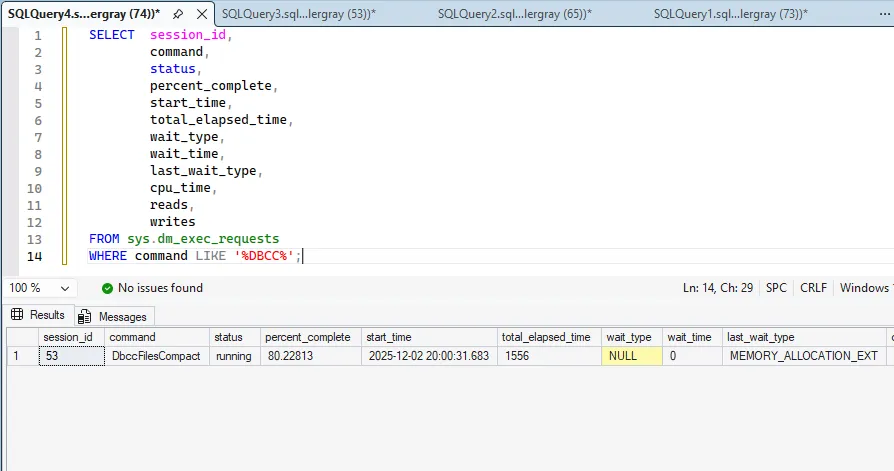
In the demo this finishes quickly. If you want to watch it for longer, increase @TargetRows in the data load.
In production, a ~220 GB NDF took about three hours. It runs online, but I still schedule it in a maintenance window because of the I/O it generates.
Remove The Emptied File
Once EMPTYFILE finishes, the file has no allocated pages and can be removed. After removing it, check the layout again:
SELECT  name,
        type_desc,
        physical_name,
        size * 8 / 1024 AS SizeMB,
        FILEPROPERTY(name, 'SpaceUsed') * 8 / 1024 AS UsedMB
FROM sys.database_files;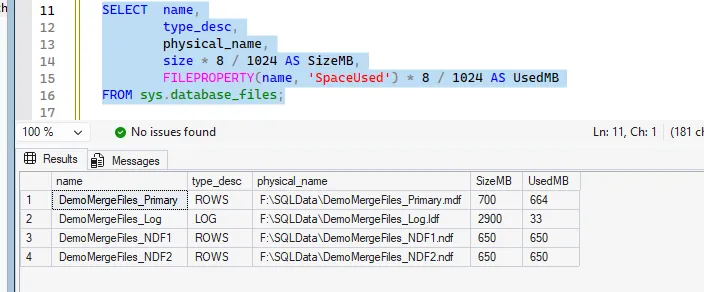
In production I repeat the “EMPTYFILE + REMOVE FILE” sequence for each secondary file I’m removing.
Post-Migration Validation
Once the files are down to one, I go back over a few things before I call it done:
- Check the file layout again.
- Run
DBCC CHECKDB. - Take a fresh full backup if you have time.
- Switch recovery model back to whatever it should be.
-- Sanity check
DBCC CHECKDB (N'DemoMergeFiles') WITH NO_INFOMSGS;
GO

-- Reset database back to FULL
ALTER DATABASE DemoMergeFiles SET RECOVERY FULL;
GO
Production Environment Considerations
- Pre-growing the destination files doesn’t make
EMPTYFILEany faster. It avoids autogrowth events during the move, which is worth doing, but the page migration is still single-threaded and still fully logged. - FULL recovery is what caused the log growth I opened with. If you can’t switch to SIMPLE, frequent log backups during the operation are the alternative, and you need somewhere to put them.
- Consolidating files isn’t a performance fix. The benefit is less administrative overhead, with one file to think about instead of eight during a restore.
When Multiple Data Files Are Still Worth It
I wouldn’t do this to every database with .ndf files:
- TempDB is the usual exception. Microsoft’s setup guidance defaults it to one data file per logical processor, up to eight, and suggests adding more in multiples of four if contention shows up.
- Very large databases spanning multiple volumes might still need multiple files per filegroup.
- Partition schemes and archival strategies sometimes lean on separate files for a reason.
The move takes a long time, but it only happens once, and afterwards there’s one data file instead of eight. That matters most on the day someone has to restore it somewhere else.
None of this makes the server faster tomorrow. It reduces operational complexity. If you want to show the process to your team or capture screenshots for documentation, the DemoMergeFiles database above runs the whole thing end to end without touching production.